General Overview
Postgenda is a simple and intuitive time-tracking application that allows you to measure, analyze, and optimize your time on activities that matter to you.
Main Features
1. Real-time Chronometer
Start a session
Select a category, a sub-category (optional) and start the timer to track your time in real-time. The only required field to start is the category. You can change everything at any time.
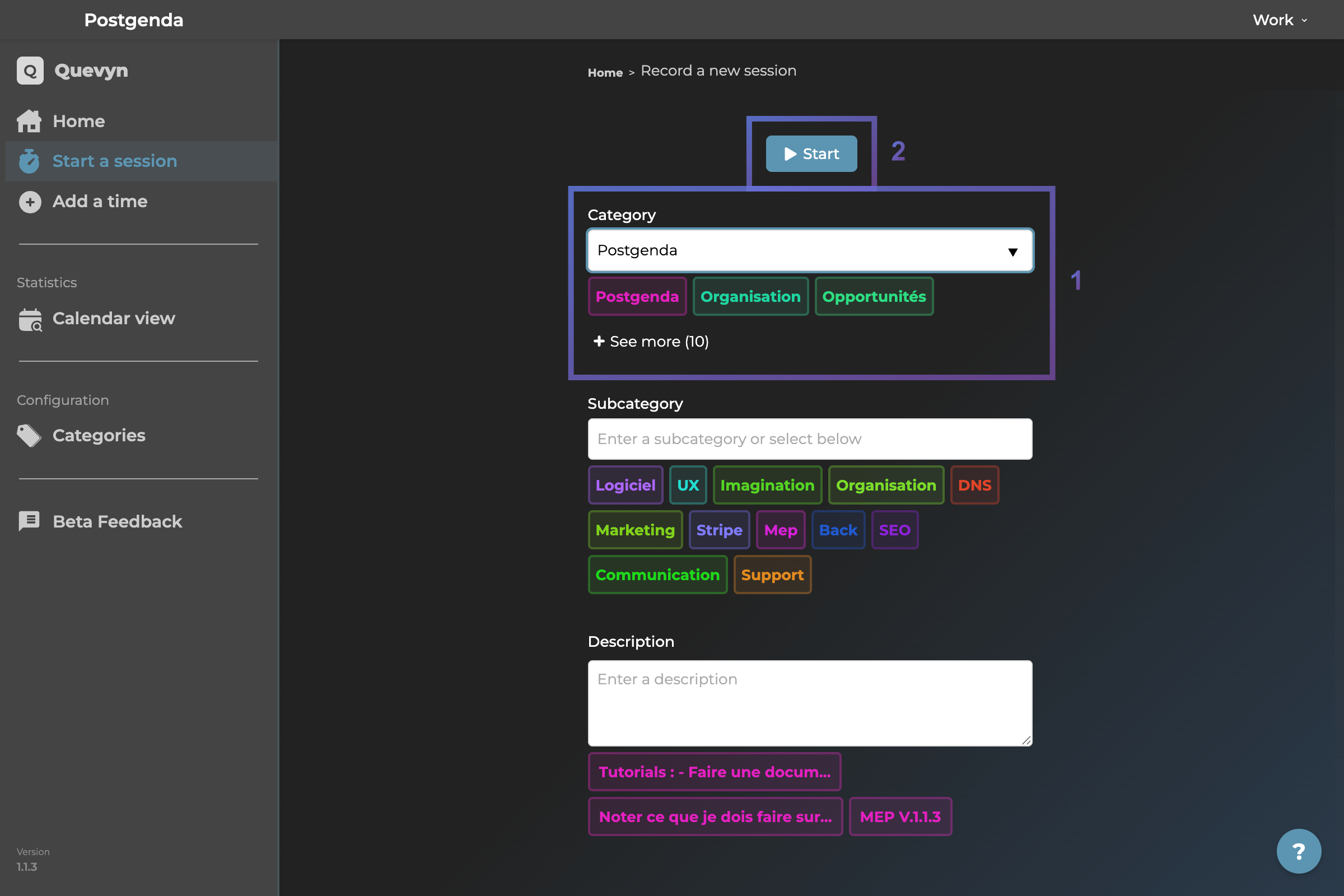 Session page - Initial state
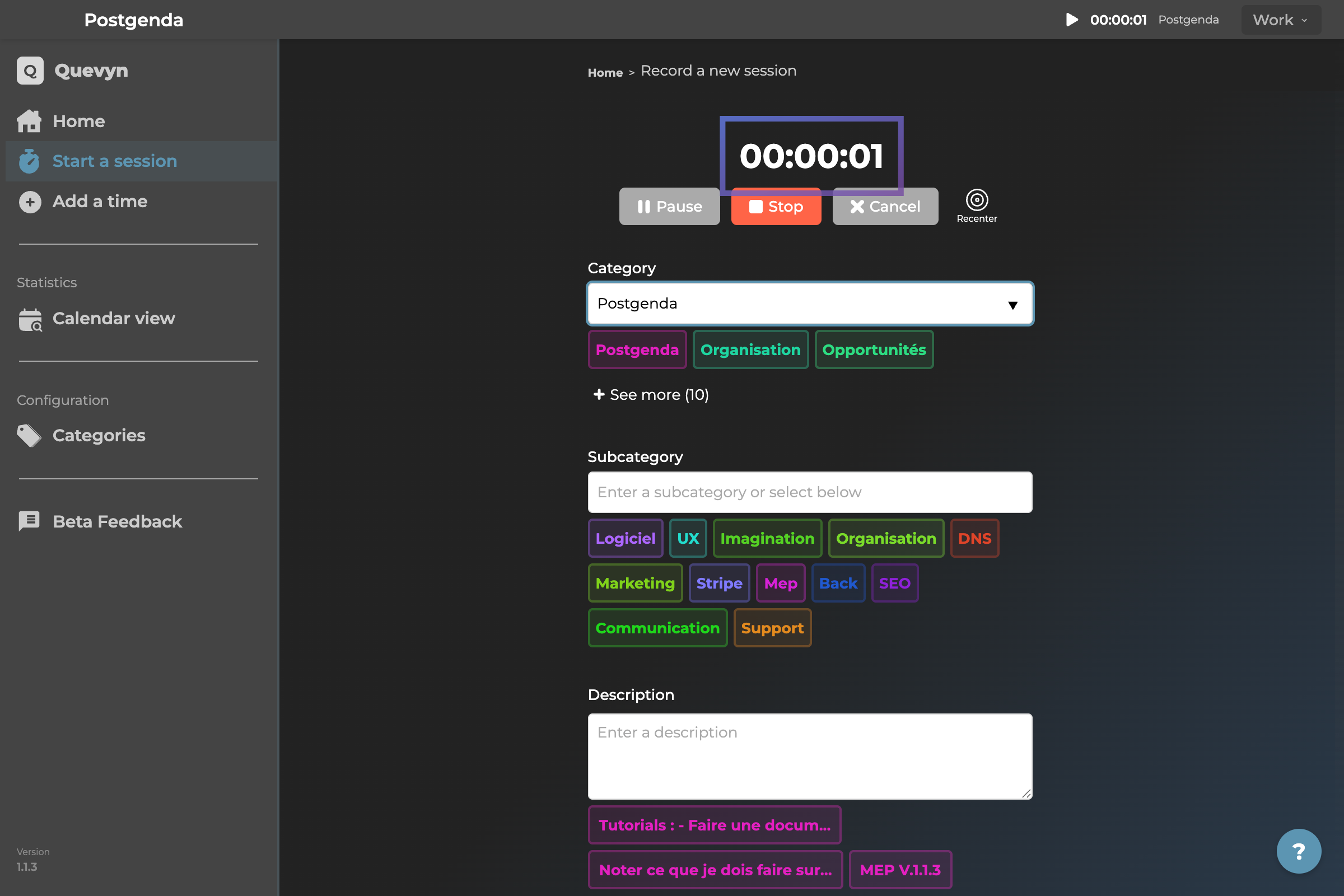 Session page - Chronometer running
Floating mini-window
The timer remains visible with a blue bar, movable and resizable.
 Mini chrono window - Minimized view
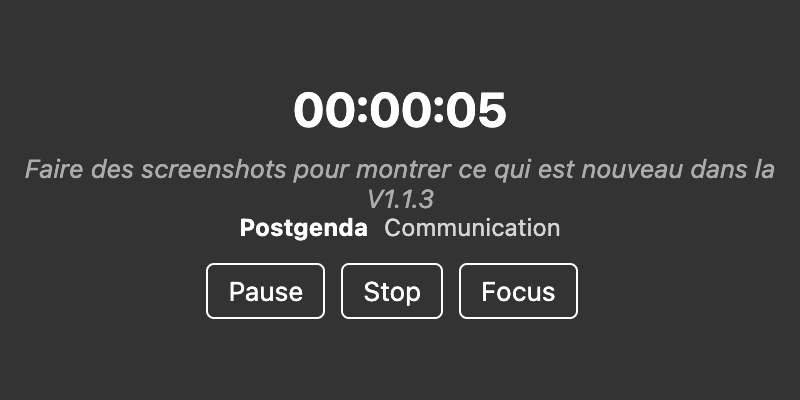 Mini chrono window - Enlarged view
Position memory
The timer position is preserved between application closures (coming soon). You can always recenter it if lost.
2. Manual Time Recording
Add time
If you forget to start the timer, add the time retroactively.
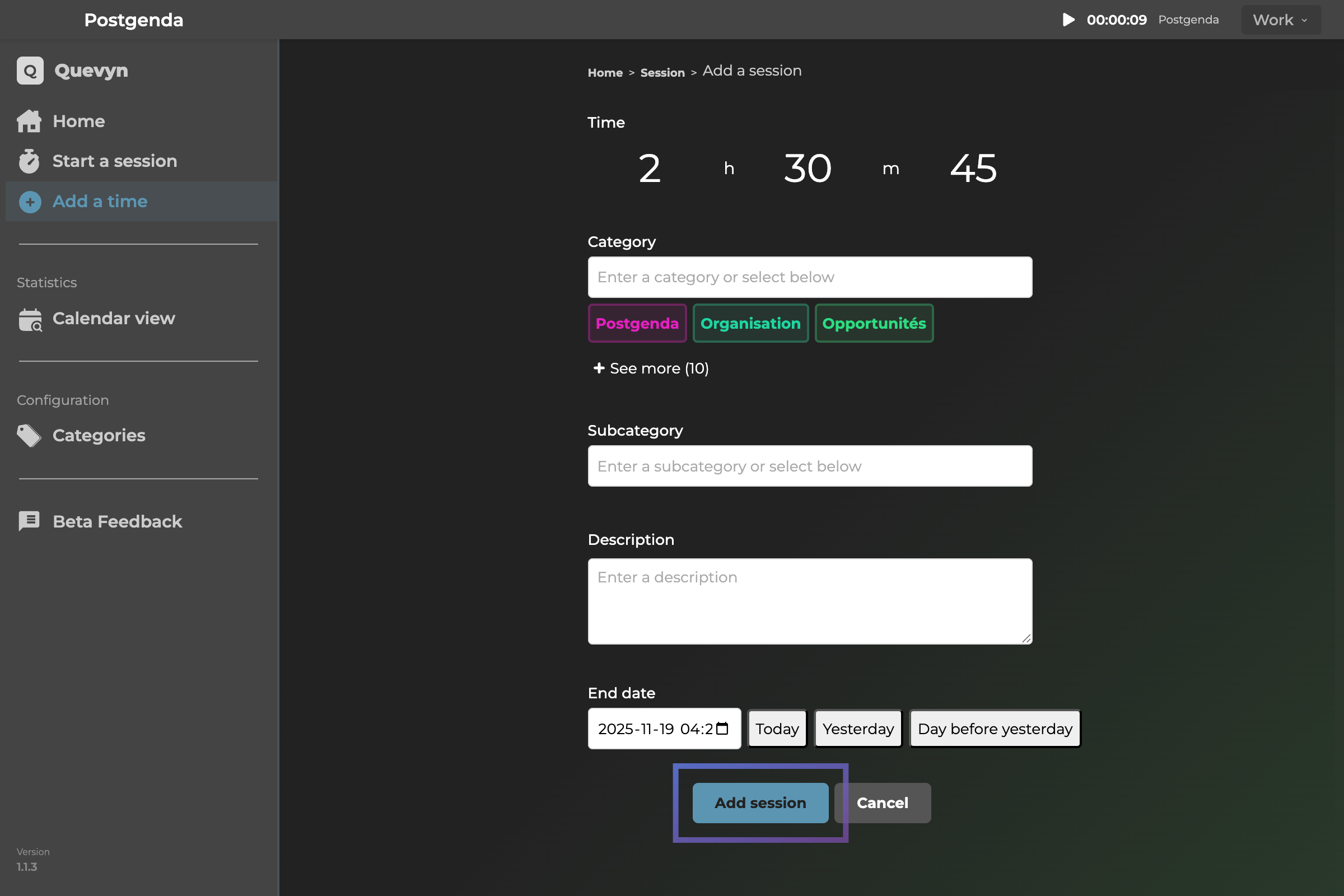 Manual time entry - Retroactive recording
Custom date and time
Record time at any date/time
Categories and sub-categories
Classify your time in a structured way
3. Visualization and Statistics
Calendar
View your data by day, week, month or since the beginning.
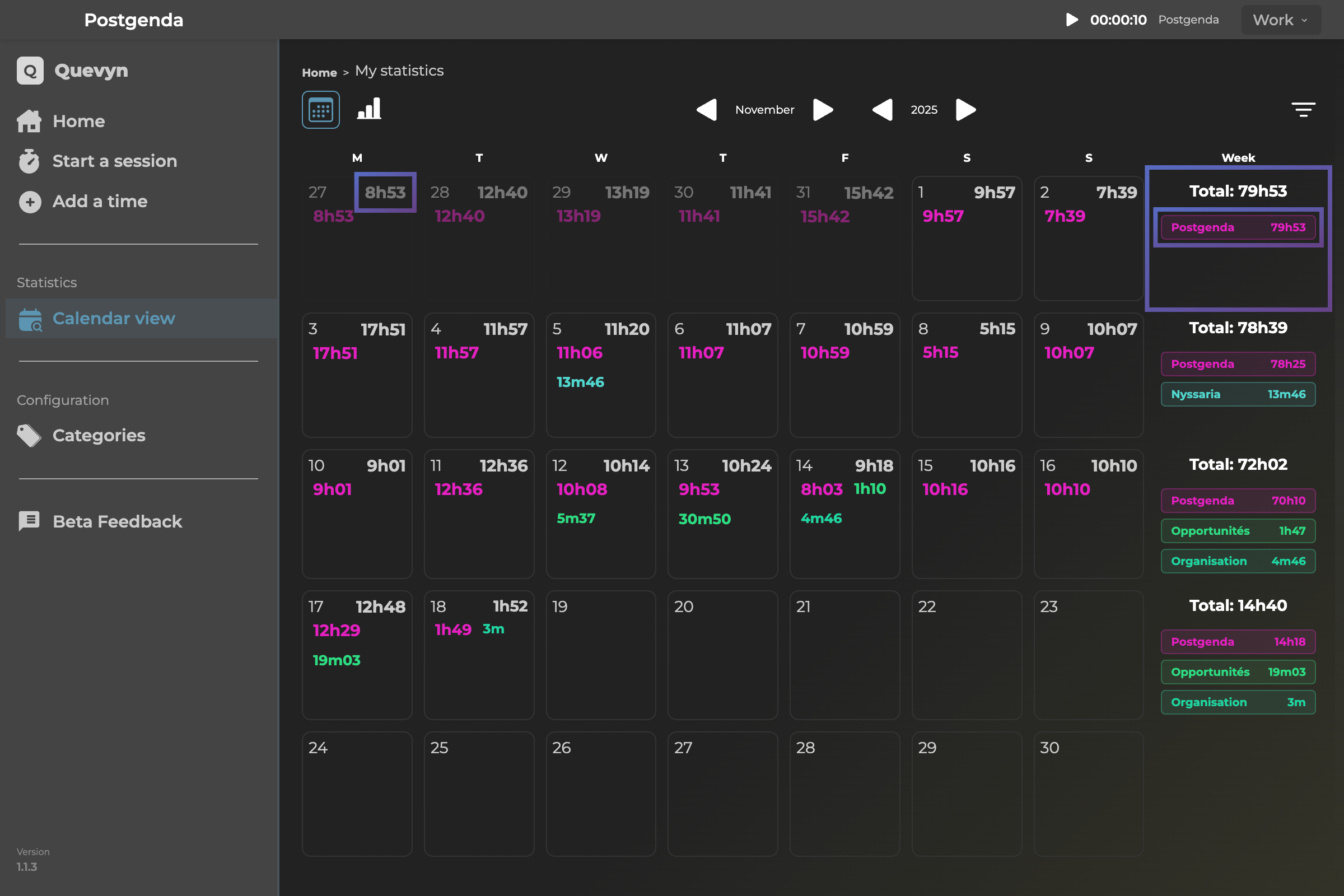 Calendar - Track your sessions by day
Category details
Hover over a category to see details.
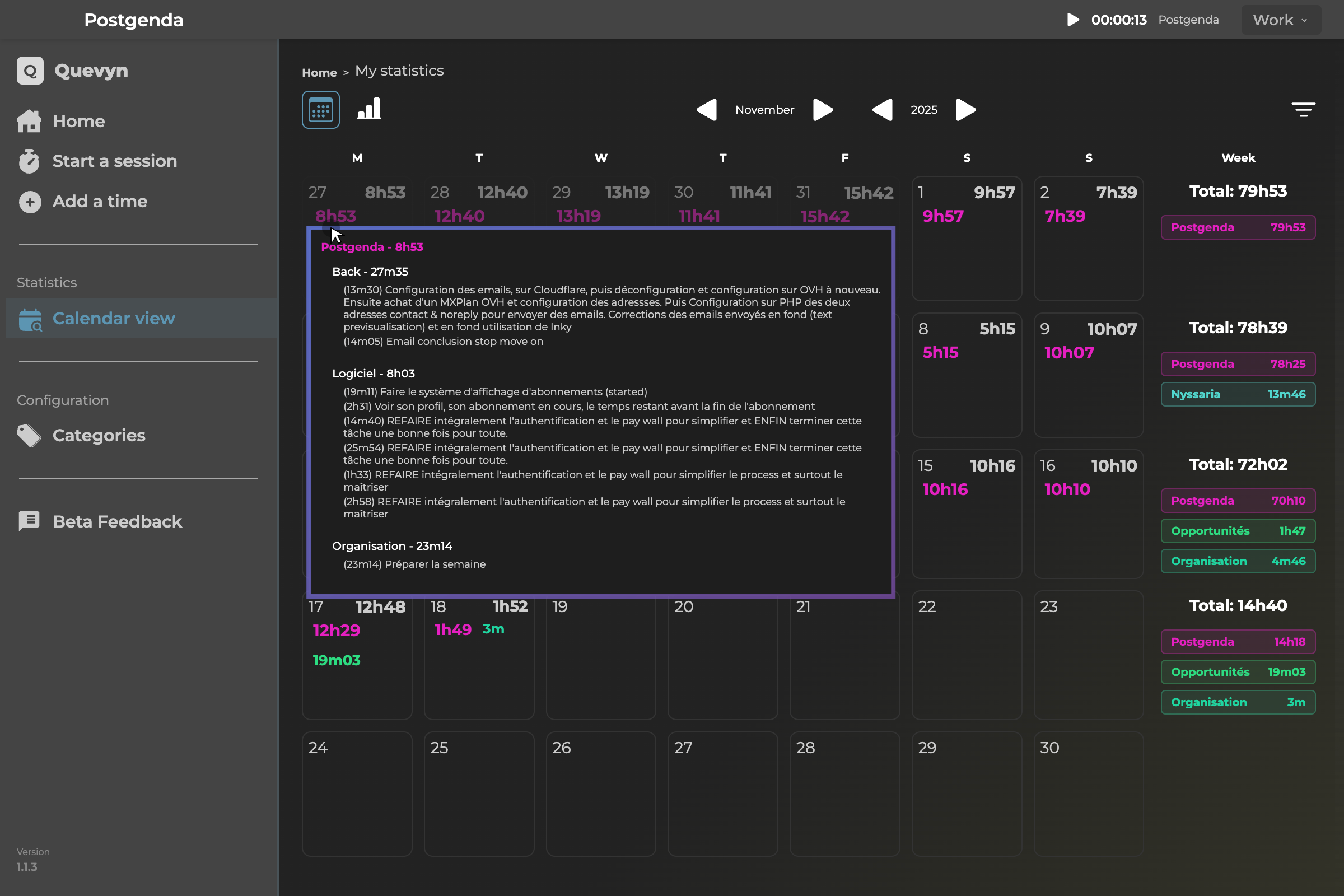 Category details - Information on hover
Filtering
View sub-categories in one click and cancel in one click.
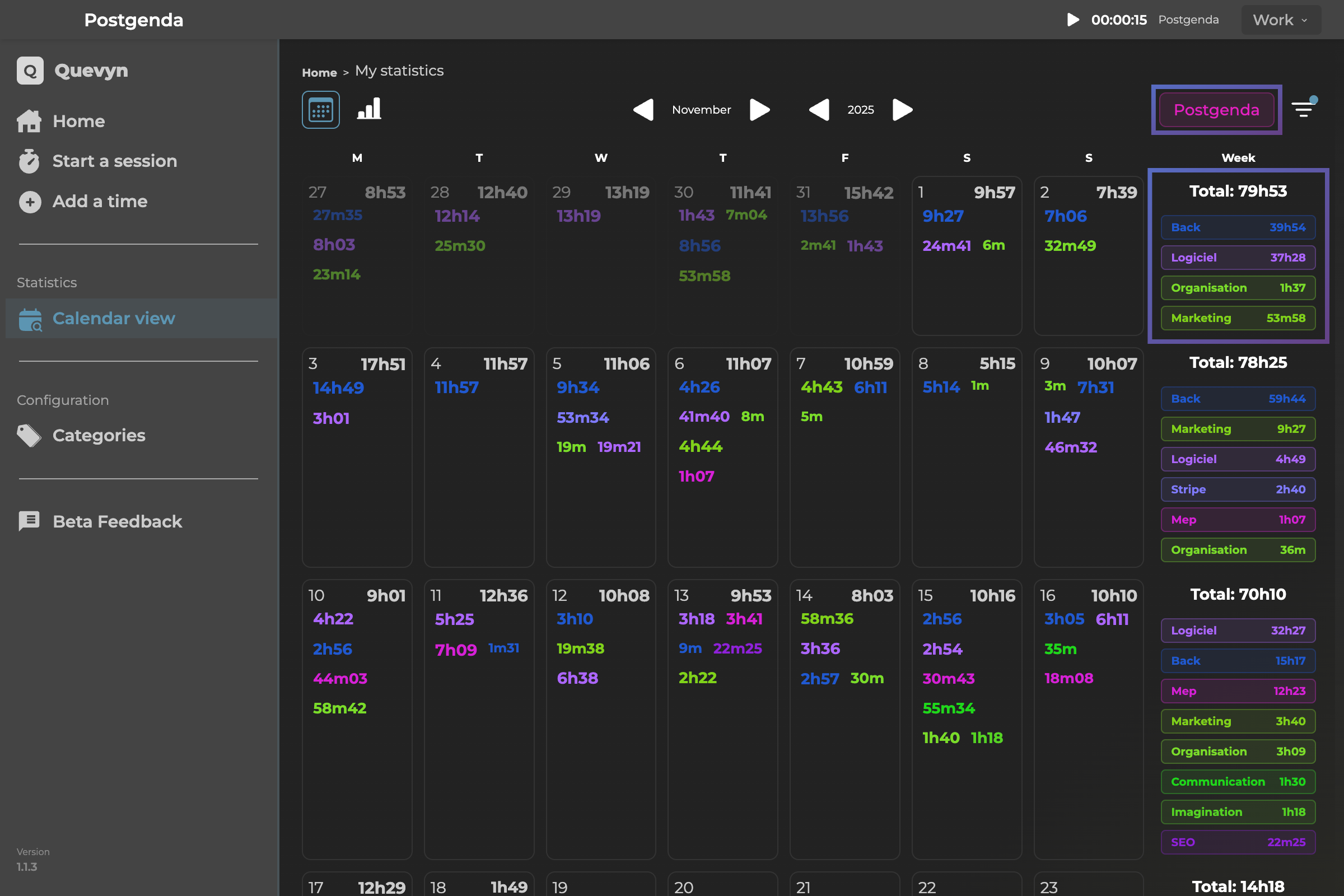 Filtering - Select and deselect categories
Cumulative totals
See the total time per category/sub-category.
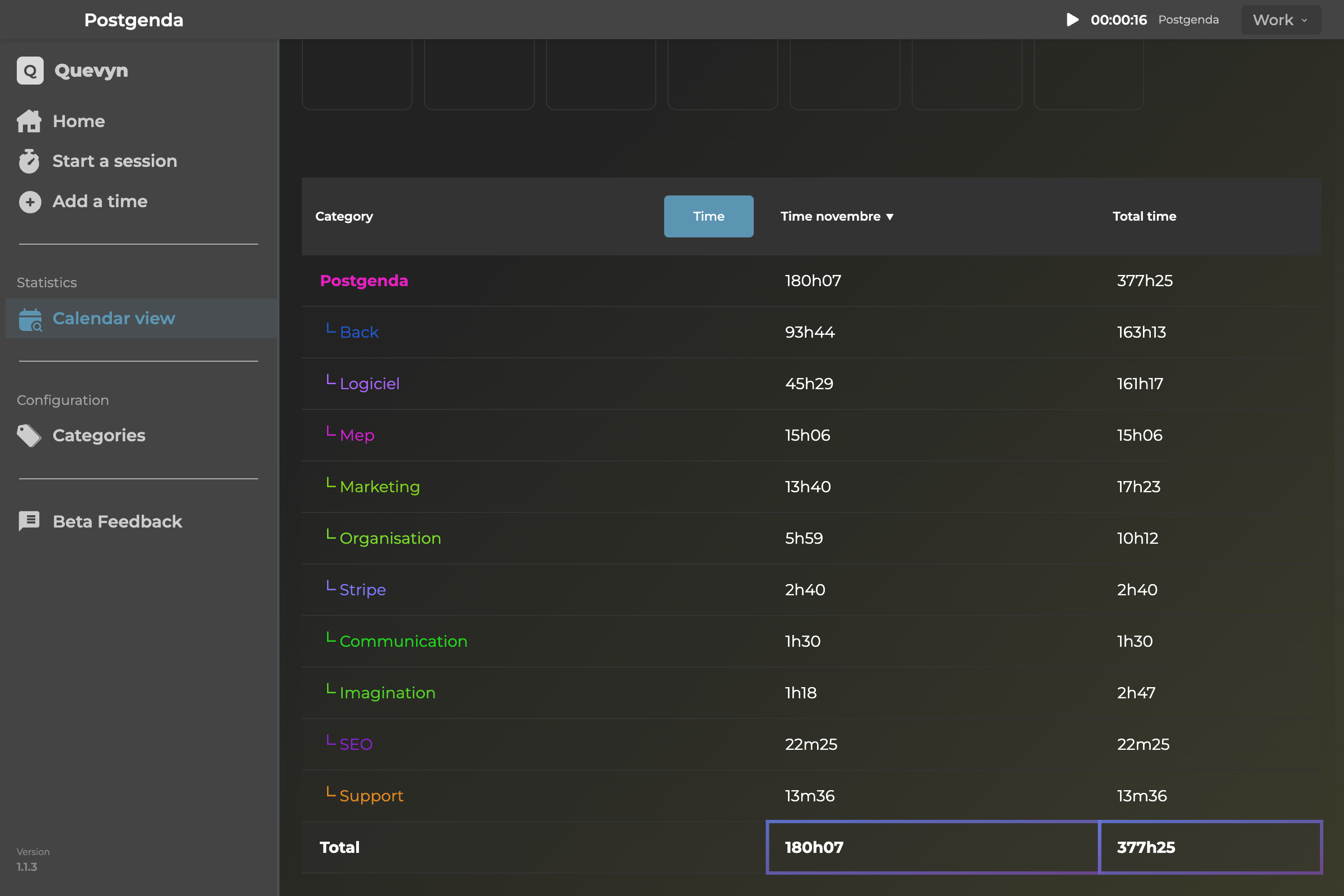 Table view - Cumulative totals by category/sub-category
Time differentials
On the home screen: Comparison of the same time (yesterday, last week, last month).
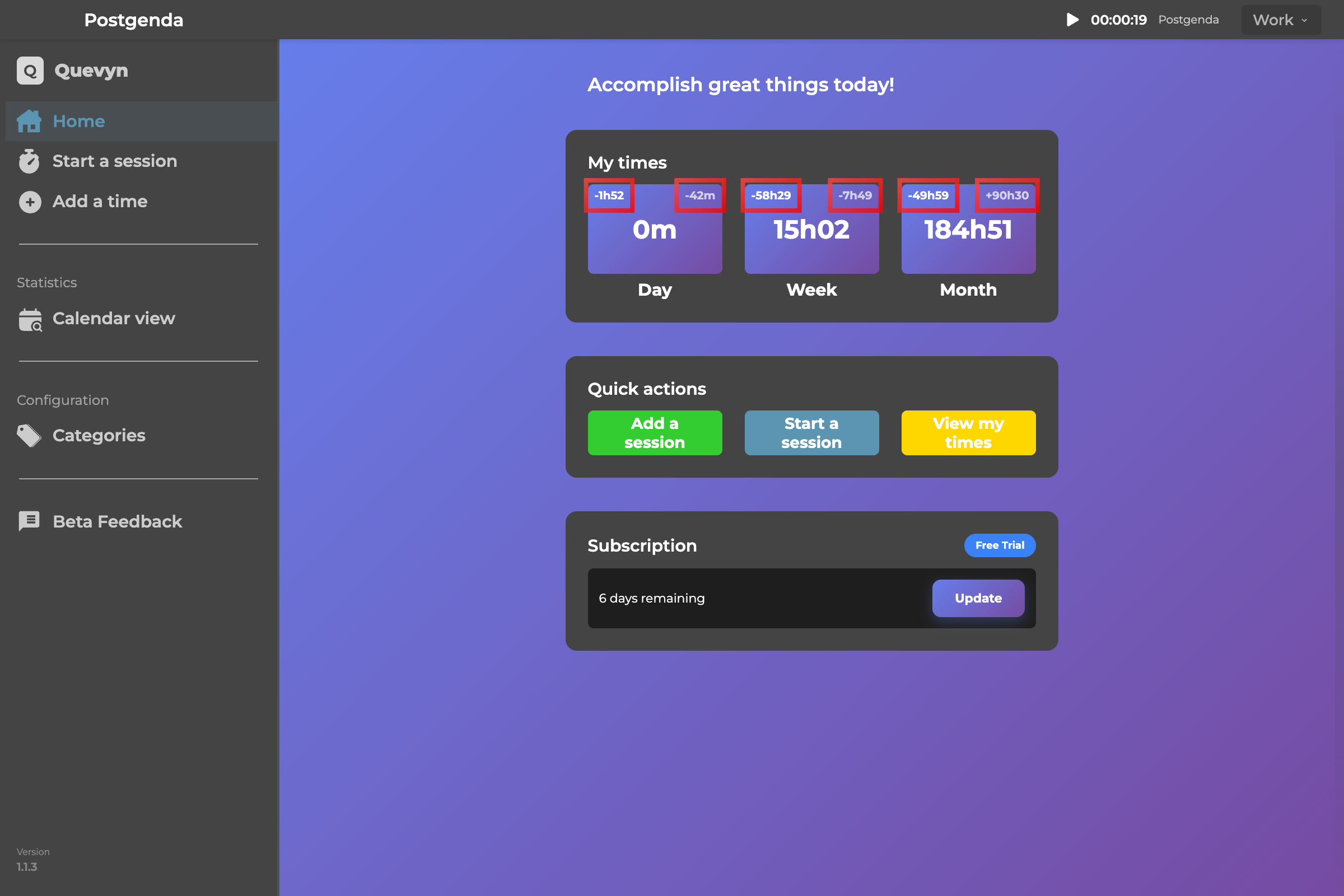 Time differentials - Period comparison
4. Category Management
Create categories
Organize your time by categories that matter to you, whether in Work, Personal, Health, etc.
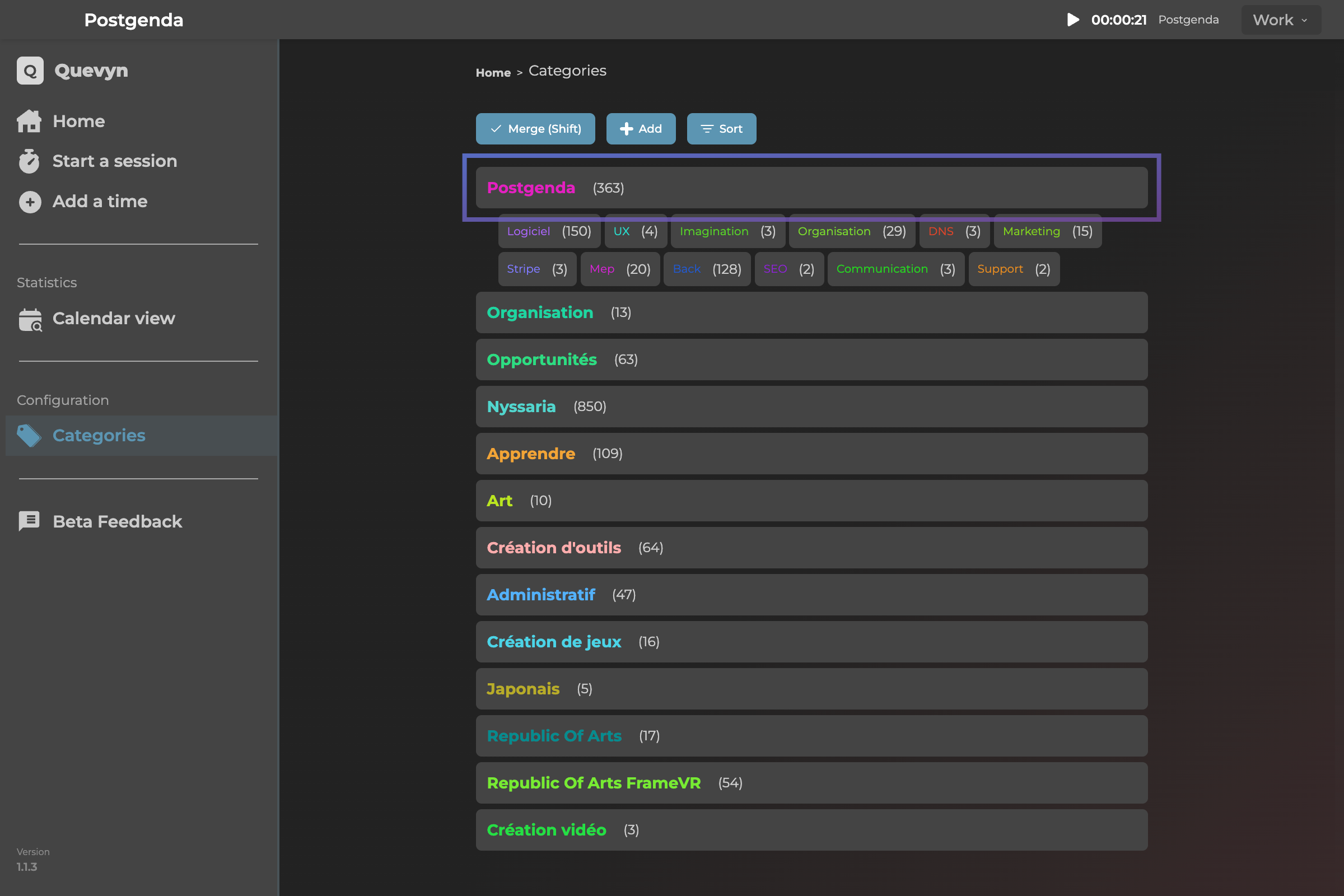 Category management - List and organization
Create sub-categories
Subdivide each category for more detail
Change colors
Customize the design with harmonious colors.
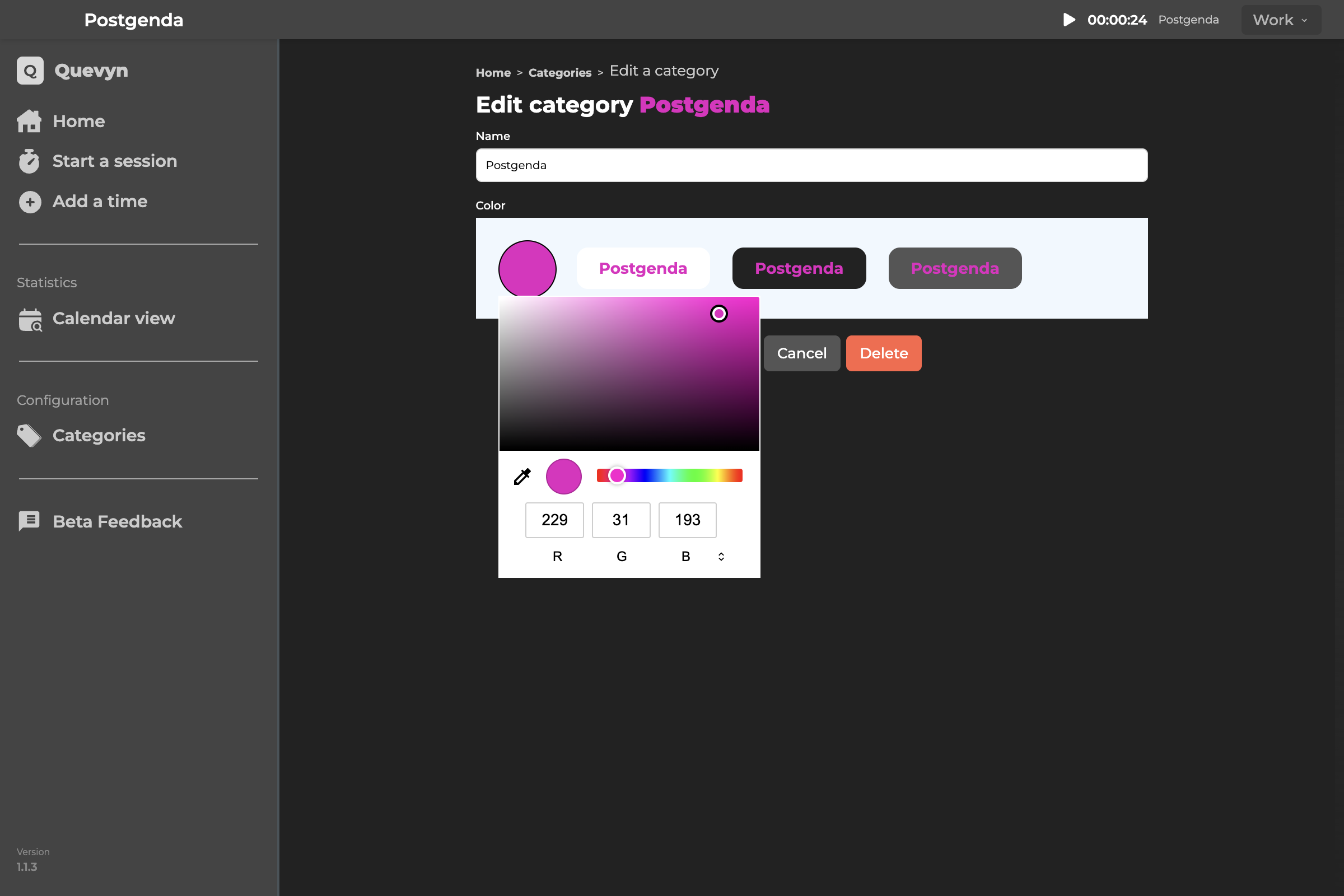 Customization - Category color changes
Merge categories
Group categories that go well together
Merge sub-categories
Group sub-categories that ultimately no longer make sense separately.
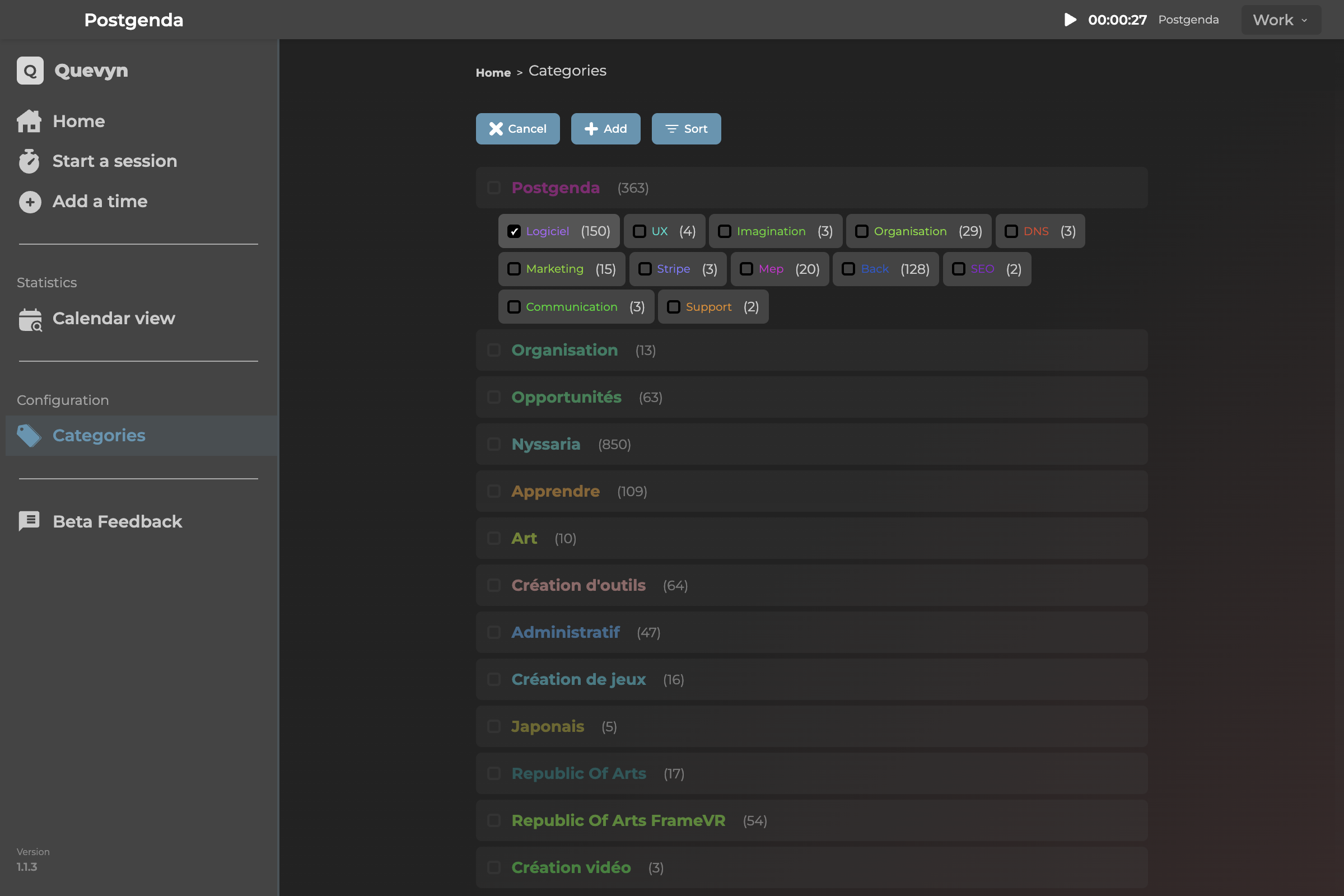 Merging - Category and sub-category grouping
Drag & Drop
Transform your categories into sub-categories and vice versa by dragging them. Validation will explain the risks.
View session list
On the number next to each category or sub-category name, you can click to see the session list. Useful in case of error to delete a session or modify text. If you simply selected the wrong category/sub-category, this version does not provide for it: delete and add the time again.
5. Profile & Account Management
Create profiles
Separate your data by context (Work, Personal, etc.) with separate stats.
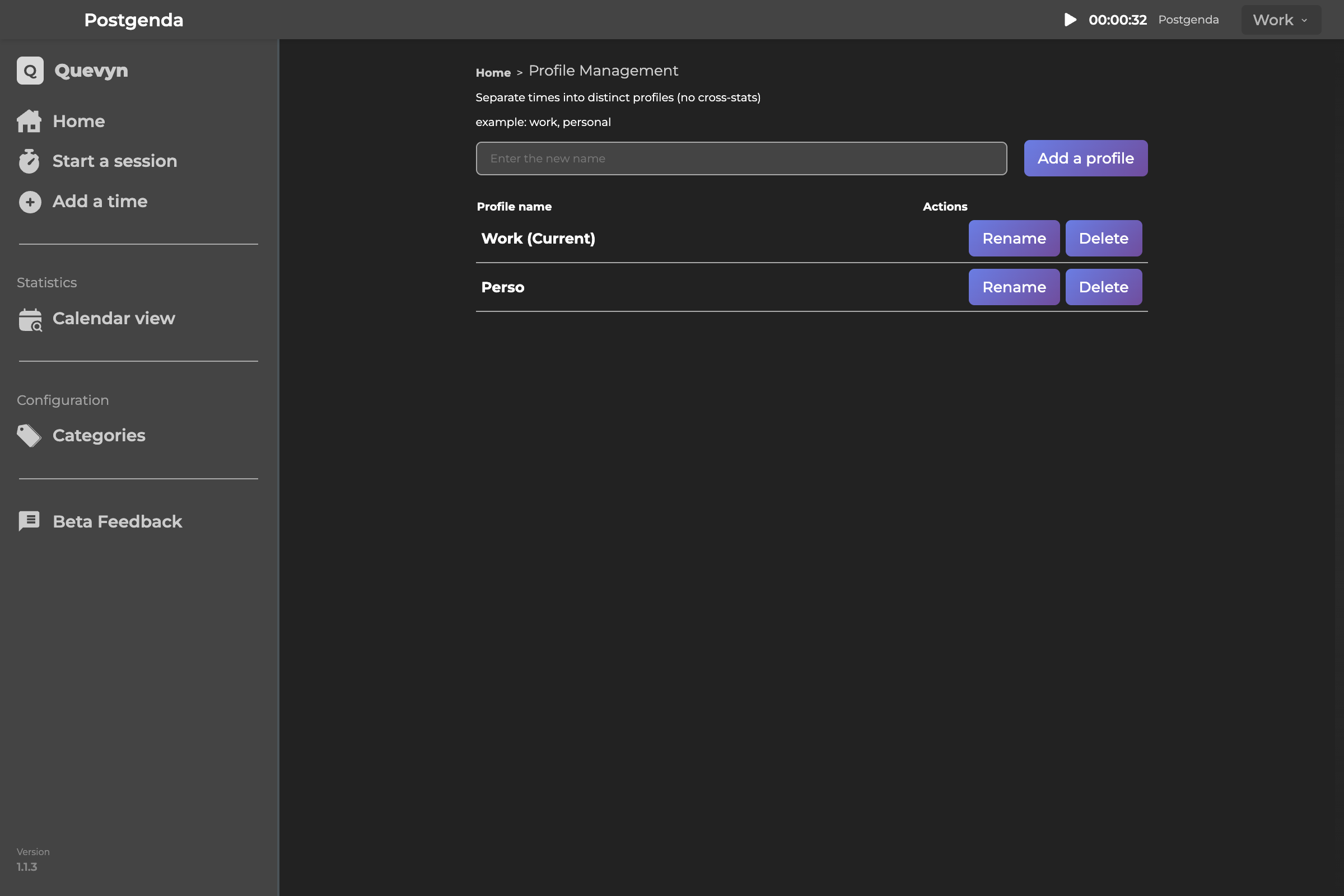 Profiles - Creating and managing separate contexts
Default: "Work" and "Personal"
Two profiles created by default for you
Data independence
Each profile has its own categories and sessions
Switch between profiles
Easily switch profiles in the interface.
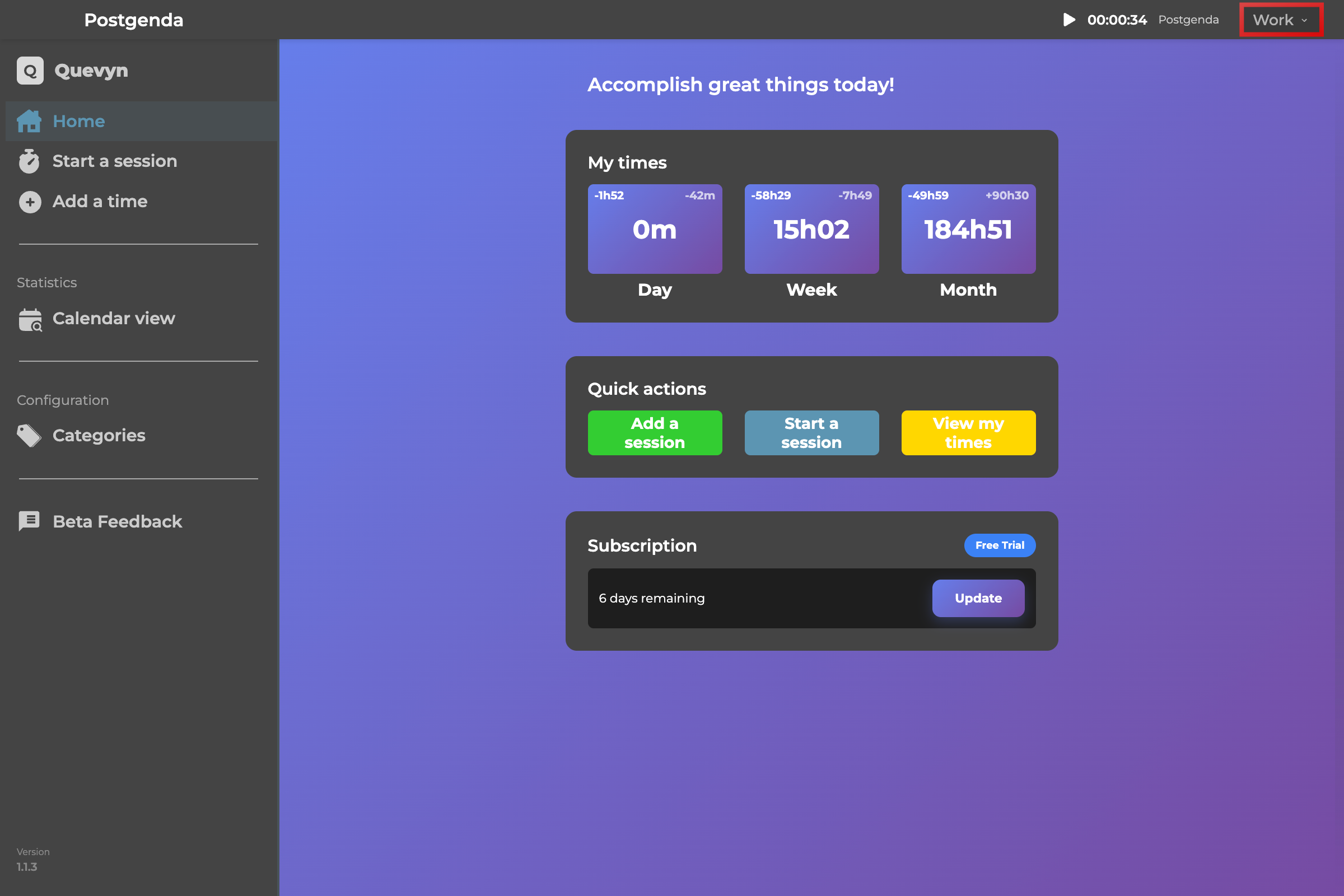 Switching profiles - Quick selection menu
Account
Access your account information in "My Account" to synchronize your subscription, for example.
6. Settings and Customization
Automatic detection
The system language is detected on first launch.
Display settings
Configure the start day of the week (Monday or Sunday)
Language selection
You can change at any time to French, English, Spanish, German.
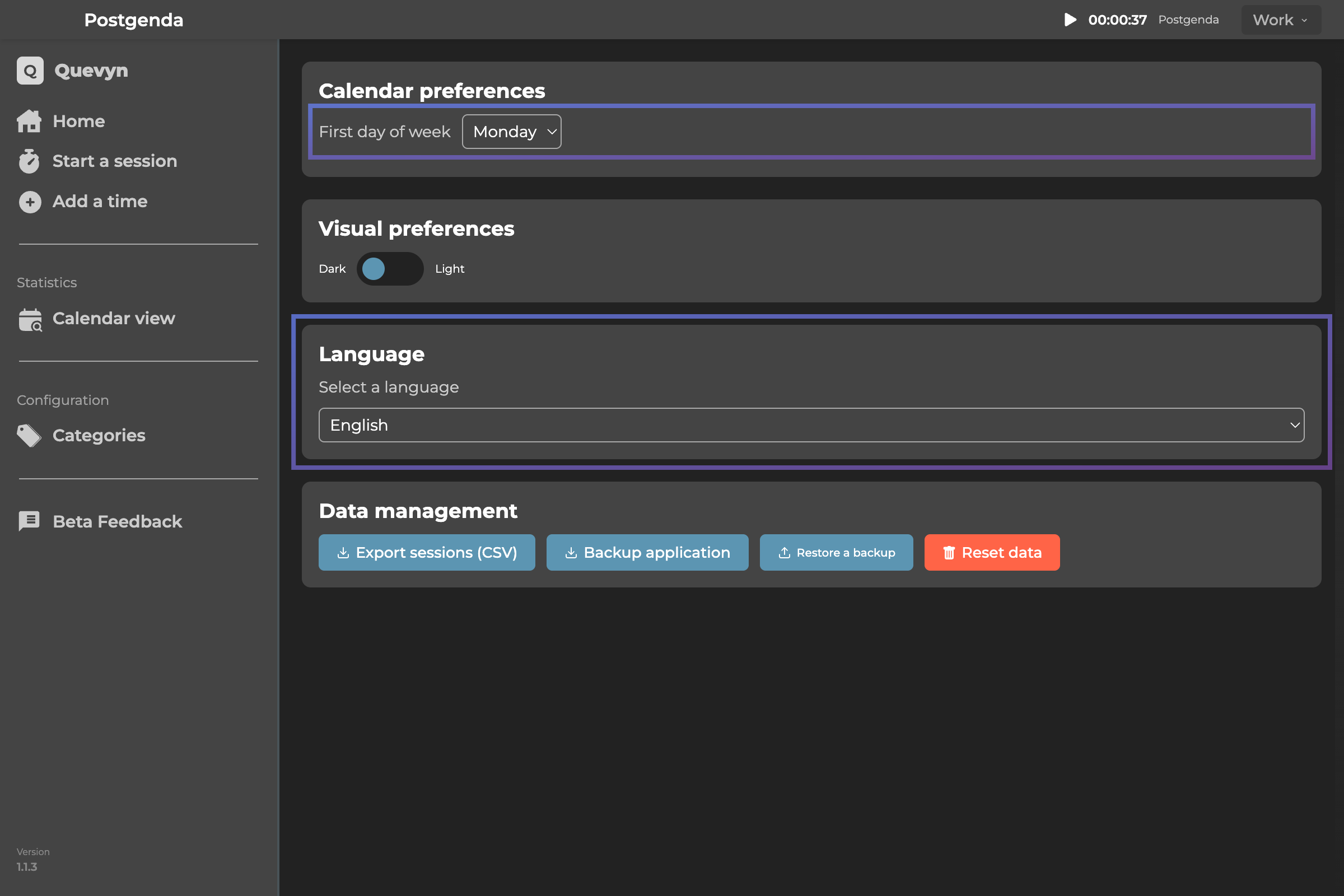 Settings - Language and display format selection
7. Synchronization and Security
Automatic backup
Your data is encrypted and backed up LOCALLY and not synchronized to the cloud. In a future version, you will have the choice to synchronize by category to the cloud or keep your information on your device. We will conduct audits later to prove that what is private is private.
Manual backup
Download your data via the menu, see section 9.
Authentication
Login required to synchronize your account and access information.
8. Authentication
Account creation
Simple registration with email and password or via Google (and soon Apple)
Login
Access your account from multiple devices (no data sync in this version)
Logout
Safely exit your account
9. User Data
Local storage
Nothing you enter is stored in the cloud, everything stays on your computer. Be careful then, in case of error or app deletion, you lose everything but here are the options available to you:
CSV export
Export your sessions in CSV format. (personal use)
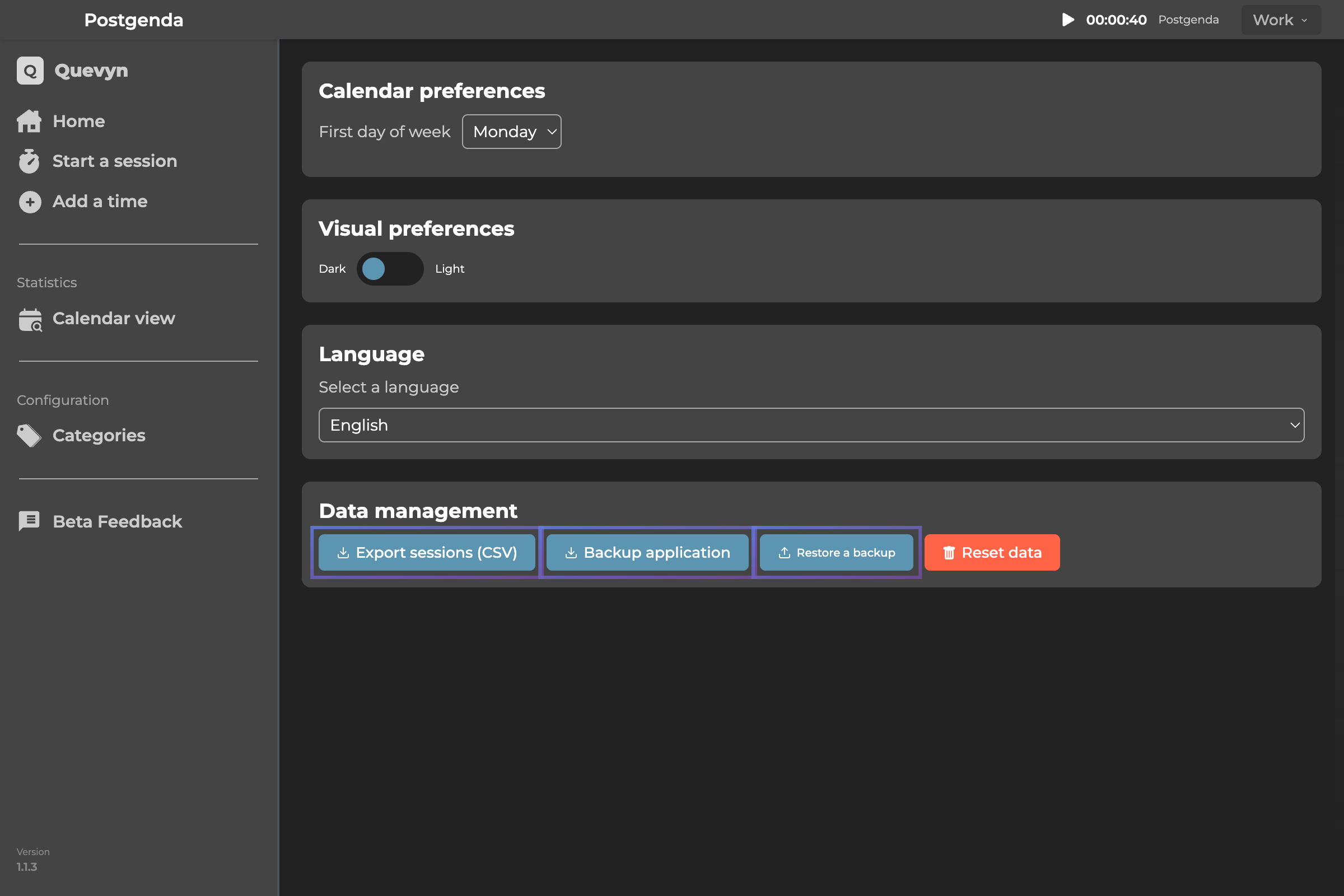 Data export - Download in CSV format
Recommended backups
Use the menu to back up your data regularly (and store them where you wish)
Backup restoration
Use the menu to restore your saved data
Collected data
App usage statistics: application opening, time on each screen, silent bugs and crashes.
Current Limitations
- Categories are not synchronized to the cloud as it was a choice to make an application with private data stored only locally. But by request of many, you will have the choice in a future version that will synchronize selected categories across multiple devices. This will allow you to use Postgenda from your phone or smartwatch while traveling or exercising.
- CSV import is being redeveloped.
- Initial onboarding and in-app tutorials are in implementation.
- Windows: the timer bar has a sizing issue (not at minimum).
- App segmentation by usage type.
Shortcuts and Tips
- Timer blue bar: Can be moved, closed or enlarged. On Windows: Place it above the taskbar. On Mac, it follows you across all your processes.
- Recommended positions: Top-right (Mac) or On the taskbar (Windows)
- Color saving: Colors are harmonized in brightness and saturation
- First profile: Create your own category structure from the start
Support and Feedback
For questions, bugs, or feedback: Use the "Feedback" button in the settings or contact [email protected]